In the fast paced world of digital product development, the transfer between design and development teams frequently becomes a critical bottleneck. Misinterpretations, endless back and forth communication, and the laborious manual creation of design specifications can lead to costly delays and frustration. Enter Figma Dev Mode, a revolutionary feature designed to bridge this gap, supporting unparalleled collaboration and efficiency.
The Essence of Dev Mode: Bridging the Divide
Figma Dev Mode is not just another feature; it’s a dedicated workspace within Figma tailored to the needs of developers, while simultaneously empowering designers to communicate their vision with unprecedented clarity. Activated with a simple Shift+D keyboard shortcut or a toggle in the top-right corner, Dev Mode transforms the traditional Figma interface into a developer-centric environment.

Why is it a game-changer?
For Developers: Dev Mode offers instant access to precise design specifications, including measurements, spacing, colors, and typography. It provides ready-to-use code snippets in various languages (CSS, iOS, Android), streamlines asset export, and allows for easy comparison of design iterations. This eliminates guesswork, reduces manual spec creation, and ensures that the implemented product precisely matches the design intent.
For Designers, Dev Mode provides a direct channel to understand how their designs translate into code. It encourages best practices in file organization and component usage, and offers features to explicitly mark designs as “ready for development,” reducing doubt. Designers can add crucial annotations and link to external resources, ensuring developers have all the necessary context for implementation.
For Teams: The ultimate benefit is a streamlined workflow. By providing a shared source of truth and a common language, Dev Mode minimizes friction, enhances communication, reduces errors, and ultimately accelerates the delivery of high-quality digital products. It supports a more collaborative environment where both disciplines work in synergy, focusing on building rather than interpreting.
The Designer’s Perspective: Crafting Developer-Friendly Designs
For designers, Dev Mode is an invitation to refine their handoff process and make their designs inherently more “code-friendly.” It’s about providing clarity and reducing the cognitive load on developers.
Setting the Stage for Success:
Organized Files are Gold: A clean and logical Figma file structure is paramount. Use clear page, section, and frame names. Think about how a developer will navigate the file to find what they need.
Leverage Components, Variants, and Styles: This is perhaps the most impactful practice. By consistently using components, variants, and shared styles (colors, typography, effects), designers ensure that the design system translates directly into a maintainable and scalable codebase. Dev Mode intelligently displays design tokens, making it easy for developers to pick up and apply them.
Auto Layout for Responsive Foundations: Designs built with Auto Layout in mind are inherently more adaptable. Auto Layout properties often mirror CSS Flexbox or Grid properties, providing developers with clear visual cues and predictable behavior.
Marking Designs “Ready for Dev”:
This is a crucial mechanism. Designers can mark individual frames, sections, or even components as “Ready for Dev.” This status appears prominently in Dev Mode, allowing developers to filter and prioritize what’s ready for implementation, avoiding wasted effort on unfinished designs. It brings structure to the design pipeline.
Providing Context with Annotations & Resources:
In-Figma Annotations: Use Dev Mode’s annotation tool (Shift + T) to add specific notes directly onto design elements. This is invaluable for explaining complex interactions, edge cases, accessibility considerations, or deviations from the standard design system.
Linking External Documentation: Figma allows linking external resources directly to components or frames. This means designers can link to Storybook documentation, Jira tickets, Confluence pages, or any other relevant information, providing developers with a single source of truth without leaving Figma.
Embracing Developer Feedback:
Dev Mode facilitates direct commenting on specific design elements. Designers should actively monitor and respond to developer questions or suggestions within Figma. This iterative feedback loop helps catch technical challenges early and ensures a smoother implementation process.
The Developer’s Perspective: Extracting Design Intent with Precision
For developers, Dev Mode acts as a powerful magnifying glass, providing all the necessary information to accurately translate design into code without constantly interrupting designers.
Navigating the Dev Mode Interface:
Once activated (Shift + D), the interface shifts. The right sidebar, previously the design property panel, becomes the Inspect panel, Assets panel, and Plugins panel, all prepared for development. The left sidebar simplifies navigation, often prioritizes frames or sections marked “Ready for Dev.”
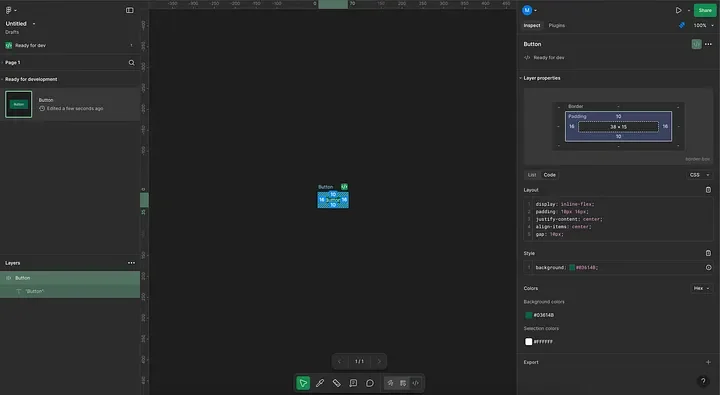
The Power of the “Inspect” Panel:
Measurements & Spacing: Simply hovering over elements reveals precise measurements for padding, margins, and component dimensions. Clicking on an element provides even more detail.
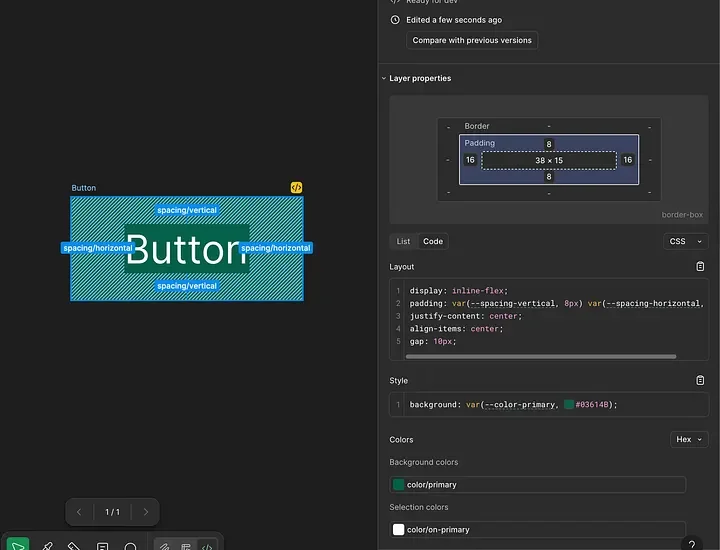
Styles & Properties: This is where the magic happens. Select any element, and the Inspect panel displays its CSS, iOS (SwiftUI/UIKit), or Android (Compose/XML) properties. Developers can click to copy code snippets for typography, colors, shadows, border-radius, and more. This significantly reduces manual coding and ensures pixel-perfect accuracy.
Understanding Variables & Tokens: If designers have set up design variables (e.g., for colors, spacing, typography), Dev Mode will display these, allowing developers to implement design tokens directly into their code, ensuring consistency and cohesion to the design system.
Efficient Asset Export:
The Export section within Dev Mode makes exporting graphics effortless. Developers can select specific icons, illustrations, or images and export them in various formats (SVG, PNG, JPG) and at desired resolutions (1x, 2x, etc.), ensuring optimized assets for different platforms and devices.
Staying Synced with Version Comparison:
Dev Mode includes a version comparison feature, allowing developers to easily see what has changed between different design iterations. This prevents working on outdated designs and streamlines the process of updating existing components.
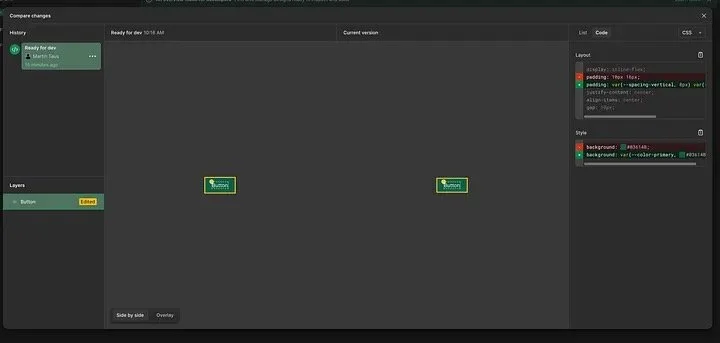
Integrating with Your Workflow:
Figma for VS Code: This powerful extension allows developers to inspect Figma designs, view comments, and even get code suggestions directly within their VS Code editor, eliminating context switching.
External Tool Connections: Dev Mode supports integrations with popular developer tools like Jira, Storybook, and GitHub. Designers can link components to their corresponding code, documentation, or task tickets, creating a centralized hub for all development-related information.
Utilizing “Ready for Dev” Status:
Developers can filter the left sidebar to only show sections or frames that designers have marked “Ready for Dev.” This helps them focus on actionable tasks and provides a clear signal of design completion.
Providing Constructive Feedback:
Just as designers benefit from developer feedback, developers should use Dev Mode’s commenting features to ask clarifying questions, highlight technical constraints, or suggest more efficient implementation approaches directly within the design file.
Conclusion: Fostering a Collaborative Ecosystem
Mastering Figma Dev Mode isn’t just about learning new features; it’s about adopting a more collaborative mindset. For designers, it means building with implementation in mind, providing crystal-clear specifications. For developers, it means having immediate, accurate access to design details, empowering them to build faster and more faithfully to the design vision.
By integrating Dev Mode into their daily routines, design and development teams can break down traditional silos, establish a shared language, and work in a truly synchronized manner. The result is a more efficient product development cycle, fewer errors, and ultimately, a higher quality product that delights users and meets business objectives with greater speed and precision. Dev Mode is more than a tool; it’s the bridge to a more harmonious and productive design-to-development ecosystem.
